Dig Collect Mobile and Touch Dig Tips
Clear Dig Collect stages on phone or tablet with cleaner touch strokes and smarter camera habits.
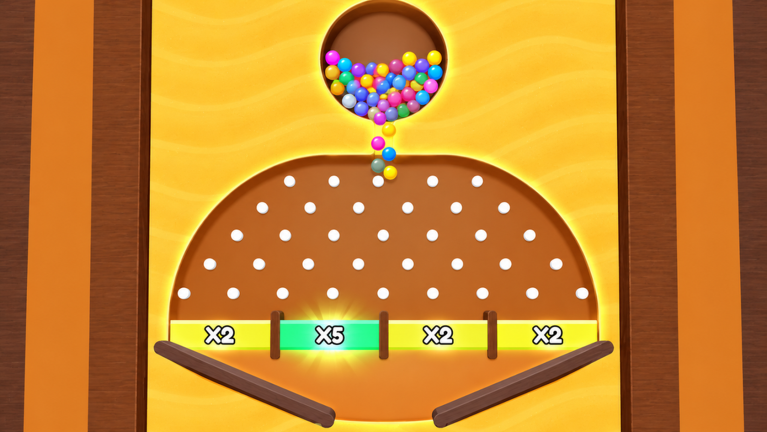
Mobile is a fully valid way to play Dig Collect. Dig & Collect by Collect Ball Game is a single-player Roblox sand-path puzzle: you dig sand with touch, guide colorful balls to the finish, and avoid traps. Fingers are wider than mouse cursors, so the same stage that feels easy on PC can feel slippery on a phone until you adapt width, camera, and pacing. This guide covers touch precision, corridor sizing, zoom habits, one-handed play, and when switching to PC is the smarter grind choice. Pair it with the platform overview in Controls.
What changes on touch versus mouse
On mobile, dig input is typically touch and drag across sand. The contact patch is large, so edges wobble more near spikes and finish lips. UI buttons may sit closer to the dig plane, which raises mis-tap risk for reset or menus. Battery heat and glossy screens add slip late in a session. None of that makes Dig Collect “not for mobile”—it means you dig slower, leave slightly more margin, and reset earlier when a stroke goes wrong.
Because sessions are single-player (maxPlayers=1), you can take that slower pace without lobby pressure. Use it.
Touch dig precision habits
- Rest the device on a table or stable grip when attempting perfect clears; standing one-hand sway widens every stroke.
- Prefer the fingertip edge for corrections near hazards and the pad for long open slopes.
- Dig in short segments: stroke, lift, reassess the tunnel edge, then continue.
- Avoid continuous scrubbing in one spot—it creates uneven floors and accidental flats.
- Pause between digs so thumbs do not drift into UI controls.
- If a stroke opens a trap lane by accident, reset immediately on all-ball attempts instead of “fixing” with more panic digs.
These habits mirror PC precision advice in Controls, scaled for finger width.
Wider corridors (on purpose, then tighten)
Start mobile corridors slightly wider than your eventual PC ideal so balls do not grind on jagged touch edges. Keep hazard-side walls thick. After a route works, tighten only the sections that bounced—do not shrink the entire highway in one pass. Near finish traps, prioritize a readable channel over a razor margin you cannot draw cleanly with a thumb.
Width still obeys Dig Collect physics: too wide invites bounce into spikes; too narrow creates micro-flats. Mobile players should bias a little toward “safe channel” until accuracy rises, then apply the stricter margins from Obstacles and Traps.
Camera, zoom, and viewing angles
Before a critical dig, adjust camera or zoom so you can see the hazard silhouette, the sand thickness you plan to leave, and the finish lip together. Digging while a spike is hidden behind the ball or UI is a classic mobile death. Re-check the angle after each phase: exit built, priority connected, shelves opened.
Tips:
- Rotate for a view that shows wall thickness on the lethal side.
- Zoom enough that your finger tip covers less of the critical edge in screen space.
- Avoid extreme top-down if it hides depth near a trap pit; a slight oblique angle often reads better for sand plugs.
- After a fail, ask whether the camera lied before you blame the slope.
One-handed and commute-friendly tips
One-handed play is common on phones. If you must dig one-handed:
- Choose easier unlocked stages for practice blocks.
- Accept slightly wider corridors and more resets.
- Prefer exit-first plans so the hardest precision stroke happens while focus is fresh.
- Avoid dual-ball chokes that need rapid shelf notches until you can brace the device.
- Take breaks when the screen gets slick; wipe the glass rather than forcing another attempt.
Two-handed tablet play with the device propped is closer to PC accuracy. If you own a tablet, use it for hard perfect clears and keep the phone for scouting and casual clears.
Phased digging still wins on mobile
Do not carve the whole map in one thumb marathon. Phase 1: exit corridor. Phase 2: priority ball path. Phase 3: open holding shelves for remaining balls. Watch physics between phases. This sequencing matches Save All Balls and reduces the chance that a fat-finger stroke ruins three routes at once.
Use intentional flats as parking pads—mobile players often over-correct stopped balls into trap drops. If a ball parks where you planned, leave it until its turn.
Shelf parking with fat fingers
When opening a release notch under a held ball, use the shortest stroke you can control. Long swipes under a shelf can free a third ball or thin a trap wall in the same motion. If your first notch is too shy and the ball stays put, add a second tiny tooth rather than one dramatic scoop. Path Digging explains shelf theory; mobile just demands smaller bite sizes.
When to switch to PC (or a finer input)
Switch devices when:
- A stage demands razor margins beside spikes and you keep clipping walls after ten calm attempts.
- Multi-ball timing needs rapid, tiny notches you cannot draw cleanly on a phone commute.
- You are grinding ranked personal bests and input variance is the limiter—not pattern knowledge.
- Hand fatigue or heat makes every stroke drift.
Switching is not failure. Pattern reads from Hard Levels and Level Difficulty Tiers transfer across devices; only the dig brush changes. Many players scout on mobile, then finish stubborn perfect clears on PC mouse.
Stay on mobile when stages are teaching width and order, when you are learning a new pattern, or when you simply prefer touch. Dig Collect does not require PC to be legitimate.
Mobile practice plan (fifteen minutes)
- Two minutes: straight slopes and one holding shelf on an easy stage.
- Five minutes: exit-first clears on a trap-near-finish layout with wider channels.
- Five minutes: add a second ball with shelf parking; demand one full clear.
- Three minutes: tighten only the section that bounced; stop before fatigue digs.
Keep Tips and Tricks nearby for one-change retries, and Common Mistakes if you catch yourself panic-widening after a slip.
Cross-links that help mobile players most
- Controls — core input model for every platform
- Path Digging — slopes, flats, shared channels
- Save All Balls — order while your thumb rests between phases
- Obstacles and Traps — finish margins without cavern digs
- Getting Started — day-one loop if you are new on phone
- Tools — prep checklists you can glance at between attempts
- Codes — real promo checks only; never invent rewards mid-grind
Closing mindset for touch clears
Mobile Dig Collect rewards players who dig less per stroke and observe more between strokes. Wider starting channels, readable cameras, braced grips, phased releases, and honest device switches turn “touch is impossible” into “touch needs different margins.” Collect Ball Game’s Dig & Collect experience plays fairly on Roblox phones and tablets when you respect finger physics as carefully as ball physics.
Frequently Asked Questions
Quick answers for Dig Collect players.
Can I beat hard Dig Collect levels on mobile?
Yes. Use slower strokes, slightly wider safe channels, exit-first plans, and more resets. Switch to PC only when razor margins become the limiter.
Why are my mobile tunnels so messy?
Long continuous thumb scrubs and unstable grips create uneven edges. Dig short segments, brace the device, and reassess after each stroke.
Should mobile paths be wider than PC paths?
Start a bit wider for control, keep thick hazard-side walls, then tighten only sections that bounce once the route works.
What camera habit helps most on phones?
Adjust view before critical digs so hazard edges, wall thickness, and the finish lip are visible together—do not dig what you cannot see.
Where do I learn the basic dig controls?
Read the Controls guide for PC, mobile, and console input models, then return here for touch-specific precision and device-switching advice.